DiskPart The CLI / Script guide
If you missed it. This is for DiskPart for Amiga. https://github.com/ChuckyGang/DiskPart
Even if you can do all in the GUI. This is a small guide how to use the CLI instead.
If you start it without any arguments it will start with GUI. if you use the argument NOWARNING it will start the GUI WITHOUT the beta warning.
DiskPart ?
Will give you a summary of commandlines options:

However from now in in this guide. I will not use screenshots from the Amiga. I Will instead show all commands as BOLD text
DiskPart LISTDEV
This will just show the devices same as what the GUI shows.
DiskPart LISTDEV UNITS
This is the same except it also shows the devices in each dev. Remember that this can show some “false positives” if the device handler actually can list a device even it might not be a harddrive.
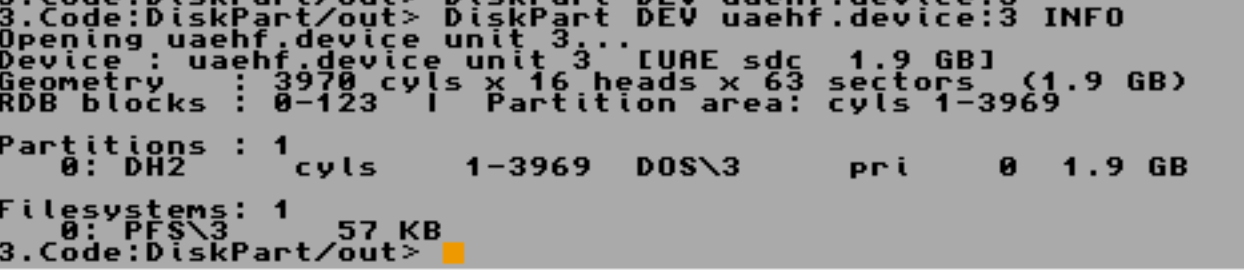
DiskPart DEV uaehf.device:3 INFO
This will show the RDB Info on device 3 on uaehf.device
DiskPart DEV scsi.device:0 SMART
IF Your device supports it, it will show SMART Data from that disk.
You can also use IMAGES instead of a device:
DiskPart IMAGE test.hdf INFO
DiskPart IMAGE fresh.hdf CREATE SIZE=100M
Will create a 100MB Image. REMEMBER. This is dependent on the filesystem of your disk if larger files can be used!
Anyway. Lets do the real stuff!
DiskPart DEV uaehf.device:3 INIT NEW
This will init the RDB on your device 3 at uaehf.device. IF you add a FORCE
DiskPart DEV uaehf.device:3 INIT NEW FORCE
It will not ask. it will just do it! and this is for all commands! adding FORCE will answer YES on all questions so be very sure what you do with FORCE
if you have written a 1GB image to your 4GB device. you usually cannot use the extra 3GB.
but with:
DiskPart DEV uaehf.device:3 INIT NEWGEO FORCE
It will read the new geometry and write it to the disk so you can use the extra space
Now we maybe want to add things:
First Filesystems:
DiskPart DEV uaehf.device:3 ADDFS TYPE=PFS3 FILE=L:pfs3aio
This will add the pfs3aio filesystem with dostype PFS3. you can also use hexvalues if you want to.
DiskPart DEV uaehf.device:3 ADDPART NAME=DH0 LOW=START HIGH=+100M TYPE=PFS3 BOOTABLE
This will add a Partition with the devicename DH0 Starting at first abailble space and will be 100MB. Using filesystem PFS3 and marked Bootable.
If you set HIGH=END it will use all available space.
If you set LOW=300M it will start at 300M
DiskPart DEV uaehf.device:3 ADDPART NAME=DH0 LOW=START HIGH=+100M TYPE=PFS3 BLOCKSIZE=1024 BOOTABLE
This will create it with a blocksize of 1024.
DiskPart DEV uaehf.device:3 ADDPART NAME=DH0 LOW=START HIGH=+100M TYPE=PFS3 BLOCKSIZE=1024 VOLNAME=MyVol BOOTABLE
This will also Format the disk with name MyVol! IMPORTANT NOTE: As filesystem is loaded at boot. if you havent had any filesystem on any disk at boottime, this format MIGHT fail as it is a PFS3. reboot and it will work.
IF you have a size of say 100M and you only have 30M free at that location, partition will be set to 30MB unless you add a ENFORCESIZE at the end. then it will fail instead
The biggest feature.. the GROW function:
DiskPart DEV uaehf.device:3 GROW DH1 100M
This will look for the DH1 partition and grow it with 100MB
You cannot have any open files on this partition but if no problems it will unmount the partition grow it and mount it again.
DiskPart DEV uaehf.device:3 GROW DH1 END
This will grow the partition to the end of the disk. (or available space)
RDB Blocks can sometimes be corrupted. This is why a backup can be a good thing to have:
DiskPart DEV uaehf.device:3 BACKUP ram:rdb.back
This backups the RDB to rdb.back.
DiskPart DEV uaehf.device:3 RESTORE ram:rdb.back
This restores the file.
DiskPart DEV uaehf.device:3 BACKUPEXT ram:rdb.back
DiskPart DEV uaehf.device:3 RESTOREEXT ram:rdb.back
This is the same as above but extended, meaning it also backups the filesystems etc.
SCRIPTING! we also supports scripts so no need to load DiskPart a gazillion of times.
Make a scriptfile:
say RAM:Scriptfile.txt
# Initialise uaehf.device unit 0
OPEN uaehf.device 0
INIT NEW
ADDFS TYPE=DOS3 FILE=L:pfs3aio
ADDPART NAME=DH0 LOW=2 HIGH=511 TYPE=DOS3 BOOTPRI=0
ADDPART NAME=DH1 LOW=512 HIGH=1023 TYPE=PDS3
WRITE
And Start DiskPart with:
DiskPart SCRIPT RAM:Scriptfile.txt
It will run it. if you do:
DiskPart SCRIPT RAM:Scriptfile.txt DRYRUN
It will run the script. but never execute anything good for testing
DiskPart SCRIPT RAM:Scriptfile.txt FORCE
This will run everything WITHOUT ASKING QUESTIONS! it will just do it
more or less all commands from CLI can be run in script.
If you look at the DiskPart archive you will find all documentation you need for CLI and Scripting.
THIS IS A WORK IN PROGRESS AND CAN BE CHANGED!